)
hoặc https:// có nghĩa là bạn đã kết nối an toàn với trang web .gov. Chỉ chia sẻ thông tin nhạy cảm trên các trang web chính thức, an toàn.
)
hoặc https:// có nghĩa là bạn đã kết nối an toàn với trang web .gov. Chỉ chia sẻ thông tin nhạy cảm trên các trang web chính thức, an toàn.


- 8.10.3 Appeals Inventory Validation Process
- 8.10.3.1 Program Scope and Objectives
- 8.10.3.1.1 Background
- 8.10.3.1.2 Authority
- 8.10.3.1.3 Responsibilities
- 8.10.3.1.4 Program Reports
- 8.10.3.1.5 Terms and Acronyms
- 8.10.3.1.6 Related Resources
- 8.10.3.2 Validation of Appeals Centralized Database System (ACDS)
- 8.10.3.3 Appeals Inventory Validation Process (AIVP)
- 8.10.3.4 Validation Tracking System (VTS)
- 8.10.3.4.1 Critical Data Field
- 8.10.3.4.2 Reason Codes
- 8.10.3.4.2.1 Normal Update
- 8.10.3.4.2.2 Error Correction
- 8.10.3.4.3 ACDS Update Request Forms
- 8.10.3.4.4 Other System Updates
- 8.10.3.4.5 Validation Format and Functions
- 8.10.3.4.6 Validation Types
- 8.10.3.4.7 Statute Validation
- 8.10.3.4.7.1 IDRS Updates
- 8.10.3.4.8 Appeals Technical Employee (ATE) Validations
- 8.10.3.4.8.1 ATE - Anniversary Validation Listing
- 8.10.3.4.9 Appeals Team Manager (ATM) Validations
- 8.10.3.4.10 Tax Examiner (TE) Validations
- 8.10.3.4.11 Processing Team Manager (PTM) Validations
- 8.10.3.4.12 Secretary Validations
- 8.10.3.5 Validation Tracking Log (VTL)
- 8.10.3.6 Physical Validation
- 8.10.3.6.1 Appeals Drawer to List Inventory Validation Process Report
- 8.10.3.6.1.1 Cases in ATM's Possession
- 8.10.3.6.1.2 Cases in APS's Possession
- 8.10.3.6.1.3 Cases in Tax Computation Specialist (TCS) Inventory
- 8.10.3.6.1.4 Cases in Chief Counsel's Possession
- 8.10.3.6.1.5 Missing Case or Tax Return
- 8.10.3.6.2 ATE Case Inventory List
- 8.10.3.6.3 Physical Inventory Validation for Appeals Processing Services (APS)
- 8.10.3.6.3.1 PEAS Inventory List
- 8.10.3.6.3.2 Case Inventory Reports
- 8.10.3.6.4 Managerial Certification
- 8.10.3.6.1 Appeals Drawer to List Inventory Validation Process Report
- Exhibit 8.10.3-1 Managerial Certification Memorandum
- Exhibit 8.10.3-2 Missing Case Report
- 8.10.3.1 Program Scope and Objectives
Part 8. Appeals
Chapter 10. Appeals Reports and Projects
Section 3. Appeals Inventory Validation Process
8.10.3 Appeals Inventory Validation Process
Manual Transmittal
January 20, 2026
Purpose
(1) This revises IRM 8.10.3, Appeals Inventory Validation Process.
Material Changes
(1) Incorporated Interim Guidance (IG) Memorandum AP-08-1223-0013, New SharePoint site for ACDS Update request, by revising IRM 8.10.3.4.3, ACDS Update Request Forms, and IRM 8.10.3.4.4, Other System Updates.
(2) Updated exhibits to ensure they are in compliance with Section 508 of the Rehabilitation Act.
(3) Made editorial updates throughout the entire IRM to correct and/or update references, outdated links, grammar/sentence structure, and formatting issues.
Effect on Other Documents
This IRM supersedes IRM 8.10.3 dated October 18, 2023, and incorporates IG Memorandum AP-08-1223-0013.Audience
IRS Independent Office of Appeals employees.Effective Date
(01-20-2026)
Steven M. Martin
Director, Operations Support
-
Purpose: This IRM section describes the Appeals Inventory Validation Process (AIVP).
-
Establishes and provides guidance and procedures for the IRS Independent Office of Appeals (Appeals) employees and managers to update, change, or modify critical data fields (CDFs) in Appeals Centralized Database System (ACDS), without sending paper requests to Account & Processing Support (APS).
-
Provides the steps for a physical validation through physical inspection of case files, commonly referred to as an Appeals Drawer to List Inventory Validation (AD2LIV).
-
-
Audience: Appeals employees.
-
Policy Owner: Director, Operations Support.
-
Program Owner: Director, Policy, Planning, Quality, and Analysis (PPQ&A).
-
Contact Information: Appeals employees should follow established procedures on How to Contact an Analyst. Other employees should contact the Content Point of Contact (Content POC) shown on the Product Catalog Results page for this IRM.
-
IRS business units are required to report accurate results of operations. Appeals depends upon ACDS data to generate these reports. In addition, Appeals uses ACDS reports to effectively manage its operations. Appeals is committed to data accuracy and internal controls on system changes. The AIVP validation tracking system delivers a systemic solution to data accuracy, and monitors changes in the ACDS database.
-
As stated in IRC 7803(e)(3), Purpose and Duties of Office, the Appeals mission is to resolve Federal tax controversies without litigation, on a basis that is fair and impartial to both the Government and the taxpayer, promotes a consistent application and interpretation of, and voluntary compliance with, the Federal tax laws, and enhances public confidence in the integrity and efficiency of the IRS. Appeals accomplishes its mission by considering protested and tax court cases, and negotiating settlements in a manner which ensures Appeals employees act in accord with the Taxpayer Bill of Rights (TBOR) in every interaction with taxpayers. The TBOR lists rights that already existed in the tax code, putting them in simple language and grouping them into 10 fundamental rights. Employees are responsible for being familiar and acting in accord with taxpayer rights. See IRC 7803(a)(3), Execution of Duties in Accord with Taxpayer Rights. For additional information about the TBOR, see https://www.irs.gov/taxpayer-bill-of-rights.
-
IRM 8.10, Appeals Reports and Projects, establishes the policy framework for Appeals reports.
-
The policy analyst, shown on the Product Catalog Results page as the Content POC, is the assigned author of this IRM.
-
PPQ&A provides trend and data analyses, and detailed summary reports for Appeals.
-
See Exhibit 8.1.1-1, Common Terms Used in Appeals, for common terms and definitions used in IRM Part 8. Terms listed in this exhibit are not included in this section.
-
The table lists commonly used acronyms and their definitions:
Acronym Definition AD2LIV Appeals Drawer to List Inventory Validation AIVP Appeals Inventory Validation Process VTL Validation Tracking Log VTS Validation Tracking System
-
This IRM is the primary source of guidance on this program. The following provide additional sources of guidance.
-
IRM 8.1.3.3.10, Appeals Inventory Validation Process (AIVP)
-
IRM 8.10.1, Internal Reports
-
IRM 8.20.6, Interim Actions
-
IRM 8.21.1, General Statute Responsibility
-
IRM 10.5.4.3, Reporting Losses, Thefts and Disclosures
-
-
All employees share responsibility for ACDS data accuracy and quality. Database validation ensures ACDS is as accurate as possible at all times. It is important to identify and correct data errors throughout the case's life cycle.
-
Inventory validation ensures the following:
-
Control of case inventory in Appeals’ jurisdiction
-
Verification of statute of limitation dates
-
Quality and reliability of data in ACDS
-
-
This section establishes requirements for inventory validations to ensure case files and tax returns in Appeals' possession are properly controlled on ACDS, and data reflected in the database is accurate.
-
All employees who establish cases on ACDS, or who are assigned cases and tax returns for resolution of tax matters, are responsible for controlling and validating Appeals' inventory of case files and tax returns.
-
Validating inventory, statute dates, and database accuracy involves both automated and physical validation methods.
-
Automated validation of CDFs is accomplished through the Validation Tracking System (VTS). VTS systemically requires users to perform case validations throughout the life cycle of each case in Appeals' inventory.
-
Physical validation is accomplished annually through physical inspection of case files and is conducted as an Appeals Drawer to List Inventory Validation (AD2LIV). Taking into consideration resources, budget constraints, and the risk of inaccurate ACDS data, each area director (AD) can approve the use of an alternative method to conduct physical validations. Examples of alternative methods include: physical validation of a statistically valid sample of cases, physical validation of all or part of the inventory of one or more co-located employees, delegating physical validation to a proxy, or any other method approved by the AD. Appeals team managers (ATMs) and processing team managers (PTMs) are responsible for completing the physical validation process jointly with their employees who are assigned an inventory of cases. For efficiency purposes, managers could also complete an annual AD2LIV in conjunction with a workload review when possible.
-
-
The VTS was designed to make it easier to achieve data accuracy and improve the data quality of the ACDS database. The VTS systemically requires validation at various designated points in the life cycle of all cases in Appeals inventory.
-
The VTS allows users to confirm that the data in ACDS is accurate at the time of validation. If an update is needed, the user may update, change, or modify entries in any of the current CDFs they have permission to change. See IRM 8.10.3.4.1 (2), Critical Data Field, for a list of CDFs by position and validation type. All updates, changes, or modifications made to CDFs through the VTS post on ACDS immediately.
-
The system requires validation of CDFs at the following designated points in the life cycle of the case:
-
Case receipt (card-in)
-
Appeals Technical Employee (ATE) assignment
-
Anniversary (over 365 days old)
-
Case closing
-
-
A CDF is an ACDS data field, identified as essential to ensuring that Appeals’ data is accurate and reliable. A data field is designated critical by Appeals headquarters.
-
A document listing CDFs by position and validation type is posted on the Appeals website. Use the hyperlink in this paragraph or navigate to the document from the Independent Office of Appeals homepage by clicking on Operations Support (under Appeals Organizations) → Business Systems Planning → Applications → AIVP VTS → Critical Data Fields (under Resources).
-
Users are required to make a determination as to the nature of the change to a CDF and designate a reason code:
-
Normal update (N) - No one is "charged" with an error when a change is designated as a normal update.
-
Error correction (E) - The prior team in possession of the case is "charged" with an error when a change is designated as an error correction.
-
-
Reason codes are captured as part of the ACDS data accuracy calculation and reports.
-
A normal update is a change to a CDF that is required as part of normal case management. Examples of normal updates include:
-
Changing an address because the taxpayer or the representative moved while the case was in process
-
Changing the statute date or code because you executed a statute extension
-
Changing the statute date or code because you received an agreement during the 90-day period
-
Changing the statute date or code because of an event or tax law, such as bankruptcy or Tax Equity and Fiscal Responsibility Act (TEFRA)
-
Adding a required feature code
-
Removing a feature code because the feature no longer applies
-
-
An error correction is a change to a CDF, because information on the system is not accurate based on source documents in your possession. This could be due to an incorrect determination or an input error. Examples of error corrections include:
-
Changing data due to key stroke errors
-
Changing the statute date or code due to statute determination errors
-
-
The VTS eliminates the need for most ACDS update requests to APS. The ATE must update CDFs on their assigned cases from the VTS unless the case is in APS's possession. APS will reject ACDS update requests that the ATE is required to make.
When an update to ACDS is needed that cannot be made through the VTS, submit the update request using the Appeals Shared Programs Hub - Home (SharePoint.com). Scroll down to the APS - Case Update Requests (Appeals Only) section to add the case update request. APS will make the update to ACDS upon receipt of a completed request form. The SharePoint site will notify the ATE when his or her request has been assigned, completed, and/or rejected. The ATE can monitor and follow-up on his or her open request.
See IRM 8.20.6.3, Account and ACDS Updates, Changes, or Corrections Required as an Interim Action, for the procedures and timeframes for APS to complete the ACDS update.Note:
To update a non-timesheet case through the VTS, access the validations menu by clicking the "Validations" button at the bottom of the "search case results screen." Non-timesheet cases are not accessible from the case activity record and automated timekeeping system (CARATS). Non-timesheet cases are related records linked to timesheet cases with the same workunit number.
-
If an ACDS update made through the VTS requires APS to make an update to another related system (for example, Innocent Spouse Tracking System), submit the update request to APS following the instruction noted in IRM 8.10.3.4.3, ACDS Update Request Forms, to use the Appeals Shared Programs Hub - Home (SharePoint.com). As necessary, include the appropriate form or format for the related system as an attachment.
-
All of the validation screens display the current data on the system for each CDF in a column headed "Original Data." The person validating the case makes changes to CDFs in the column headed "Data" by either entering new data in write-in fields or selecting from a drop-down list, if one is provided. For each change made, the user must check a box to indicate whether the change was a normal update (N) or an error correction (E). See IRM 8.10.3.4.2, Reason Codes.
-
All of the validation screens provide the user with options to:
-
Save Draft and Exit - this option allows the user to save changes as a draft and exit the screen and return later to complete the validation. Any changes saved as draft will remain on the system for 30 calendar days from the date of the last update saved as a draft. Only the person who saved the draft can view the draft. A dialog box will appear after the user clicks the button to confirm that the validation was saved as a draft. Click "OK" to exit the validation screen.
-
Validate - this option submits the user's changes, or, if no changes were made, validates that the information on the system is accurate. The user should click the "Validate" button only after reviewing all data on the screen, and determining that it’s correct. After the user clicks the "Validate" button, the system displays a message confirming that the validation was successful. When "Validate" is clicked, the change is immediately written to ACDS. New CARATS Action Code "VA" is systemically generated when a validation is submitted.
-
Cancel - this option deletes all changes input on the screen and returns the user to the previous screen. A dialog box will appear asking, "Are you sure you want to exit without saving or validating?" If you click "Yes," the system will cancel the changes and return to the previous screen. If you click "No," the screen remains available for updates.
-
Print - this option allows users to print the validation screen. The "Print" button is located in the top right-hand corner of the screen.
-
Help - this option opens a pop-up window that explains the validation process. The "Help" button is located next to the "Print" option in the top right-hand corner of the screen.
-
-
The following is a list of validation types by position:
Validation Type Position Statute ATE
ATM
Tax Examiner (TE)
PTMCreate Case TE Assignment ATE Anniversary ATE Sample ATM
PTMWorkload ATM Closing ATE
TEOther ATE
ATM
Secretary
TE
PTM
-
The assigned employee will perform a data accuracy validation which includes a statute validation.
-
APS TEs are required to verify case information as part of the card-in process and will complete a "Create Case" validation in ACDS prior to sending the case to the ATM for assignment or the PTM for sample validation.
-
ATEs are required to validate case information on all cases in their inventory and will complete an "Assignment Validation" in VTS as directed for the procedures applicable to the workstream.
-
-
The "Statute Validation" lists only statute-related CDFs:
-
TAX PERIOD
-
STATUTE DATE
-
STATUTE CODE
-
-
See IRM 8.10.3.4.7.1, IDRS Updates, for information on updating Integrated Data Retrieval System (IDRS) when submitting a validation that includes a change to a statute date or statute code on a tax period controlled on ACDS with a Y Audit Information Management System (AIMS) Indicator.
-
APS users will also update IDRS when required whenever they update a statute date or statute code on ACDS.
-
When a non-APS user completes a validation that includes a change to a statute date or statute code on a tax period with an AIMS Indicator "Y" on ACDS, the system:
The systemic creation of an unassigned PEAS case ensures the IDRS statute date/code update will be assigned to an APS TE.-
Selects the PTM that has been assigned to support the user’s location and workstream, and
-
Creates a new Processing Employee Automated System (PEAS) case with PEAS Type = AIVP/Sub-Type = AIMS in the selected PTM's inbox.
-
-
ATEs will ensure all assigned cases are properly controlled on ACDS.
-
ATEs will validate CDFs using the VTS. Once validated, ACDS updates made through the VTS will display immediately.
-
All changes to CDFs are tracked on the validation tracking log (VTL), accessible from the CARATS screen menu.
-
ATEs may access the validations menu for their assigned cases by clicking the "Validations" link from CARATS, or the "Validations" button at the bottom of the search case results screen. Some menu options may be "grayed out" or not listed when not systemically required. You must complete systemically required validations when required, or the system will prevent subsequent updates. ATEs perform the following types of validations:
-
ATE - Assignment - systemically required when the ATE saves the CARATS entry CR/NR.
-
ATE - Anniversary - systemically required at the received date plus 365 days.
-
ATE - Closing - systemically required when the ATE saves the CARATS entry AC/FR.
-
ATE - Other - this option is available at any time and includes all CDFs open to the ATE for editing.
-
ATE - Statute - this option is available at any time and includes statute-related CDFs open to the ATE for editing.
-
-
The ATE will directly update all available CDFs through the VTS. The ATE will designate each change identified as part of the validation process as either a normal update (N) or an error correction (E).
-
When a change is required that is not part of the VTS’s CDFs, the ATE will prepare and submit an ACDS Update request to APS, identifying the required update, change, or modification.
-
An anniversary validation is required when a case has been open in the Appeals inventory for more than 365 days. The anniversary validation supports the Appeals annual inventory validation requirement to review each case at least once every 365 days and is an opportunity to ensure ACDS data matches information in the source documents.
-
A system notification alerts the ATE that an anniversary validation is required. No further action can be taken on the case until the anniversary validation is completed, for each case in the workunit.
-
If there has not been a previous validation of the case, both the assignment and anniversary validations may be required.
-
An anniversary validation is not required if any of the following conditions are met:
-
The ATE completed the assignment validation within the previous 30 days
-
The Case Activity Record (CAR) shows an AC/FR or AC/OD entry
-
The case shows an ACAPDATE entry
-
The case is assigned in PEAS
-
The case has a DATECLSD and closing code <22 or = 45
-
-
The ATE - anniversary validation listing is located on the main reports menu. This is a listing of workunits that need an anniversary validation. The list contains the following information for each workunit listed:
-
TPNAME
-
WUNO
-
TIN
-
MFT
-
DKTNO
-
KeyYear
-
Assigned
-
Part
-
Status
-
-
ATMs may access the "Validations" menu for their team's assigned cases from the ATM main menu, or from the search case results screen. Some menu options may be grayed out or not listed when not systemically required. ATMs perform the following types of validations:
-
ATM - Workload Review - this option is available at any time.
-
ATM - Sample - required on a systemically selected sample of cases when the ATM enters the ATM approved date (ACAPDATE). The ATM’s sample size is set by Appeals headquarters. (Setting the sample size at zero removes the requirement to conduct the sample validation.)
-
ATM - Other - this option is available at any time and includes all CDFs open to the ATM for editing.
-
ATM - Statute - this option is available at any time and includes statute-related CDFs open to the ATM for editing.
-
-
TEs may access the "Validations" menu for any case they have permission to access from the search case results screen. Some menu options may be "grayed out" or not listed when not systemically required. TEs perform the following types of validations:
-
APS - Create Case - systemically required when the TE cards a case.
-
APS - Closing - systemically required when the TE closes a case.
-
APS - Other - this option is available at any time and includes all CDFs open to the TE for editing.
-
APS - Statute - this option is available at any time and includes statute-related CDFs open to the TE for editing.
-
-
PTMs may access the "Validations" menu for any case they have permission to access from the search case results screen. Some menu options may be "grayed out" or not listed when not systemically required. PTMs perform the following types of validations:
-
PTM - Sample - required on a systemically selected sample of cases when the APS TE cards the case on ACDS, before it goes to the ATM for assignment. The PTM Sample size is set by Appeals headquarters. (Setting the sample size at zero removes the requirement to conduct the sample validation.)
-
PTM - Other - this option is available at any time and includes all CDFs open to the PTM for editing.
-
PTM - Statute - this option is available at any time and includes statute-related CDFs open to the PTM for editing.
-
-
Secretaries may access the "Validations" menu for any case they have permission to access from the search case results screen. Some menu options may be grayed out or not listed when not systemically required. Secretaries may perform the "Secretary - Other" validation. This option is available at any time and includes only CDFs related to preparing correct letters:
-
TPName
-
TP Address
-
POA
-
POA Address
-
TYPE
-
Tax Period
-
-
The VTL lists all validations submitted on a case. It can be used to interpret changes to CDFs. All ACDS users have read-only access to the VTL.
-
To access the VTL, select the case from search results, then click on the "VTL" button for that case at the bottom of the search case screen. There are various other VTL entry points in ACDS, depending upon the user’s permissions.
-
The VTL displays data for one case at a time. It includes the history of CDF changes made through the VTS. You can view or print detailed information about each validation by clicking on the "plus" sign to expand the data for the validation type listed.
-
Physical validation is accomplished through physical inspection of case files. Physical validation is performed to ensure cases and tax returns assigned to or in the possession of employees for resolution of tax matters are established, processed, or controlled on ACDS. A physical validation identifies:
-
Cases in possession of an Appeals employee but not controlled on ACDS.
-
Cases controlled on ACDS but not in the possession of an Appeals employee.
-
Erroneous statute of limitation dates and/or codes.
-
-
The physical validation process is commonly referred to as an AD2LIV. Each fiscal year, ATMs and PTMs, in collaboration with their employees who are assigned an inventory of cases, are responsible for conducting a physical validation. For efficiency, managers could complete the physical validation in conjunction with a workload review when possible.
-
ATMs can use the AD2LIV to conduct a physical inventory validation listing (IVL) in collaboration with their employees.
-
PTMs can use the PEAS inventory list to conduct a physical IVL in collaboration with their employees.
-
ADs can approve using an alternative method to conduct physical validations.
-
The AD2LIV process report is located on the ATM functions menu.
-
The AD2LIV process report was designed for ATMs to use when conducting a drawer to list physical IVL of all cases assigned to, and in the possession of, an ATE. It can be worked on-screen from ACDS without printing until the validation is completed.
-
Validate cases from the drawer to the list. Pull each administrative file in the ATE's possession and compare it to the listing.
-
When the report is initially displayed, the "Validated" checkbox will be checked for any case that has had an "ATM - Workload Review Validation" within the last 365 days by the ATM running the report.
-
To validate a case, click on the TPNAME hyperlink to open the "ATM - Workload Review Validation" for the case.
-
At a minimum, validate the accuracy of the following required CDFs:
-
TAX PERIOD(S)
-
STATUTE DATE(S)
-
STATUTE CODE(S)
-
-
Update the required CDFs as needed. You may also update any of the other CDFs included on the validation screen. After you've changed CDFs or determined no changes are needed, click "Validate."
-
When you are returned to the report after clicking "Validate," a check mark will appear in the "Validated" check box for the case. If you change one of the following CDFs, you will see the change when you are returned to the report:
-
TAXPAYER
-
TYPE
-
FEATURE
-
MFT
-
TAX PERIOD
-
STATUTE DATE
-
STATUTE CODE
-
-
Insert comments about each case, if warranted, by typing up to 250 characters in the "Comments" field.
-
Click "Save the Draft" to save the report in draft form when you are not able to complete the report in one sitting.
-
When all cases have been validated, thus inserting check marks into all of the "Validated" check boxes, the "IVL Completed" button will become enabled. Click on this button to finish the "Drawer to List" process. The "Print" dialog screen will then be displayed, giving you the opportunity to print the report.
-
Update ACDS to account for any administrative file in the ATE's physical possession and not on the listing.
-
Follow the procedures in IRM 8.10.3.6.1.5, Missing Case or Tax Return, for any case or tax return that is on the list but not in the drawer and not accounted for.
-
If a change is needed to a CDF that is not included on the "ATM - Workload Review Validation," the ATE should use the "Other Validation" option.
-
The ATM will validate cases on the AD2LIV process report that were closed to the ATM but do not have an ACAPDATE.
-
If a case is on the ATE’s AD2LIV process report, but clearly in APS's physical possession, and ACDS research supports the determination of the location of the case, the ATM and ATE are not responsible for physically inspecting the file. However, they must add appropriate comments to the AD2LIV process report. Enter and save the comments and validate the case with no changes to CDFs, to "check" the case off the report. Examples of appropriate comments include:
-
"ACAPDATE MM/DD/YYYY and assigned on PEAS for closing MM/DD/YYYY to (TE Name)"
-
"ACAPDATE MM/DD/YYYY and assigned on PEAS for interim assessment to (TE Name)"
-
"ACAPDATE MM/DD/YYYY and assigned on PEAS for SND (NOD) to (TE Name)"
-
"ACAPDATE MM/DD/YYYY and ACTION = STIPFF/STATUS = E/STP "
-
"ACAPDATE MM/DD/YYYY and SNTYPE = 090A/SNDATE = MM/DD/YYYY/STATUS = E/TSN"
-
-
If a case has been reviewed, approved, and forwarded to APS but not assigned on PEAS, annotate the AD2LIV process report with "ACAPDATE and not on PEAS." Notify the PTM to locate the case. Do not validate the case until it has been accounted for. If the case cannot be located, follow the procedures in IRM 8.10.3.6.1.5, Missing Case or Tax Return.
-
Tax Computation Specialist (TCS) is not required to conduct a physical IVL. If a case needs to be validated and it's in TCS inventory, the TCS working the tax computation request is not responsible for validating the case. The ATM/ATE or PTM/TE will validate any case in TCS inventory on the inventory list.
-
Docketed cases in the possession of Chief Counsel for trial preparation should be identified as "Part 3" on ACDS. "Part 3" cases are excluded on the AD2LIV process report. No other validation is required for "Part 3" cases in Counsel's possession.
-
If a docketed case is in Counsel’s physical possession for trial preparation but in "Part 2" on ACDS, then update the "Part" to "Part 3."
-
If a docketed case is in Appeals' physical possession but listed as "Part 3" on ACDS, then update the "Part" to "Part 2." Next, validate the case in Appeals’ possession.
-
Validate "Part 1" or "Part 2" cases in Counsel's physical possession, such as for decision document preparation, notice of deficiency review, offer in compromise legal sufficiency review, etc. It may be necessary to retrieve the file to perform the validation.
-
List cases or tax returns that you could not locate during the physical validation on the missing case report.
-
Include the plan of action for how the case was located or resolved on the missing case report.
-
Include the missing case report as an attachment to the managerial certification memorandum.
-
Exhibit 8.10.3-2, Missing Case Report, provides a template for the missing case report.
-
See also IRM 10.5.4.3, Reporting Losses, Thefts and Disclosures, and its subsections, for procedures on reporting the loss of sensitive information immediately upon discovery.
-
The ATE case inventory list is another validation report option within ACDS for ATEs. ATEs may generate an ACDS ATE case inventory list (titled, "AO Inventory List" ), as needed.
-
Generate a current ACDS ATE case inventory listing as follows:
Step Action Required 1 The AO Inventory List is located under Reports→Case Inventory Reports→ AO Inventory List. 2 Employee’s name defaults to their name automatically. 3 Sort inventory by "KEYCASE+TPNAME" . 4 Select the button option that reads - "Print Part 3 and related WUNOs separately at bottom of listing."
-
APS inventory consists of assigned and unassigned inventory. APS conducts physical inventory validations using a variety of reports and methods, including:
.-
VTS- APS validates cases using the VTS when required by the system throughout the life cycle of the case.
-
PEAS Inventory List - The PTM can use this report to conduct a physical inventory validation of assigned cases with the TE, preferably during a workload review.
-
Other inventory validation related reports - APS generates and works other inventory validation related reports related to controlling the physical location of assigned and unassigned cases and statutes, as required in IRM 8.10.1, Internal Reports.
-
-
Generate a current PEAS Inventory List as follows:
Step Action Required 1 Access the "PEAS Inventory List" located under APS→Reports→IVL 2 Select the employee from the drop-down list 3 Select "Just Cases in Inventory" 4 Sort by TPNAME 5 Check the box to "Include open PEAS cases with no open returns" -
In addition to the PTM using this list for the physical IVL, the TE may generate and work this report on an as needed basis.
-
As required in IRM 8.10.1, Internal Reports, APS generates and works a variety of case inventory reports. The following case inventory reports and report parameters are also used for physical inventory validation:
-
ACDS unassigned report – Select the 2nd option and then select Action
-
Statutory notice (SN) report
Answer Y to question whether to include non-petitioning spouse (NPS) cases
Enter Beginning SN Issued Date: Subtract one year from default date (first date of current month less one year)
Enter Ending SN Issued Date: Use default date (last date of current month)
Answer Y to question whether to print the earliest Statute Date -
Stipulated decision documents for filing (STIPFF) alpha list - see IRM 8.10.1.4.3.1.12 (6), PROCEDURES FOR THE STIPFF ALPHA LIST
-
-
Managers will follow their area's instructions to certify conducting the physical IVL and results.
-
Areas will follow their director's instructions to certify conducting the physical IVL and results.
-
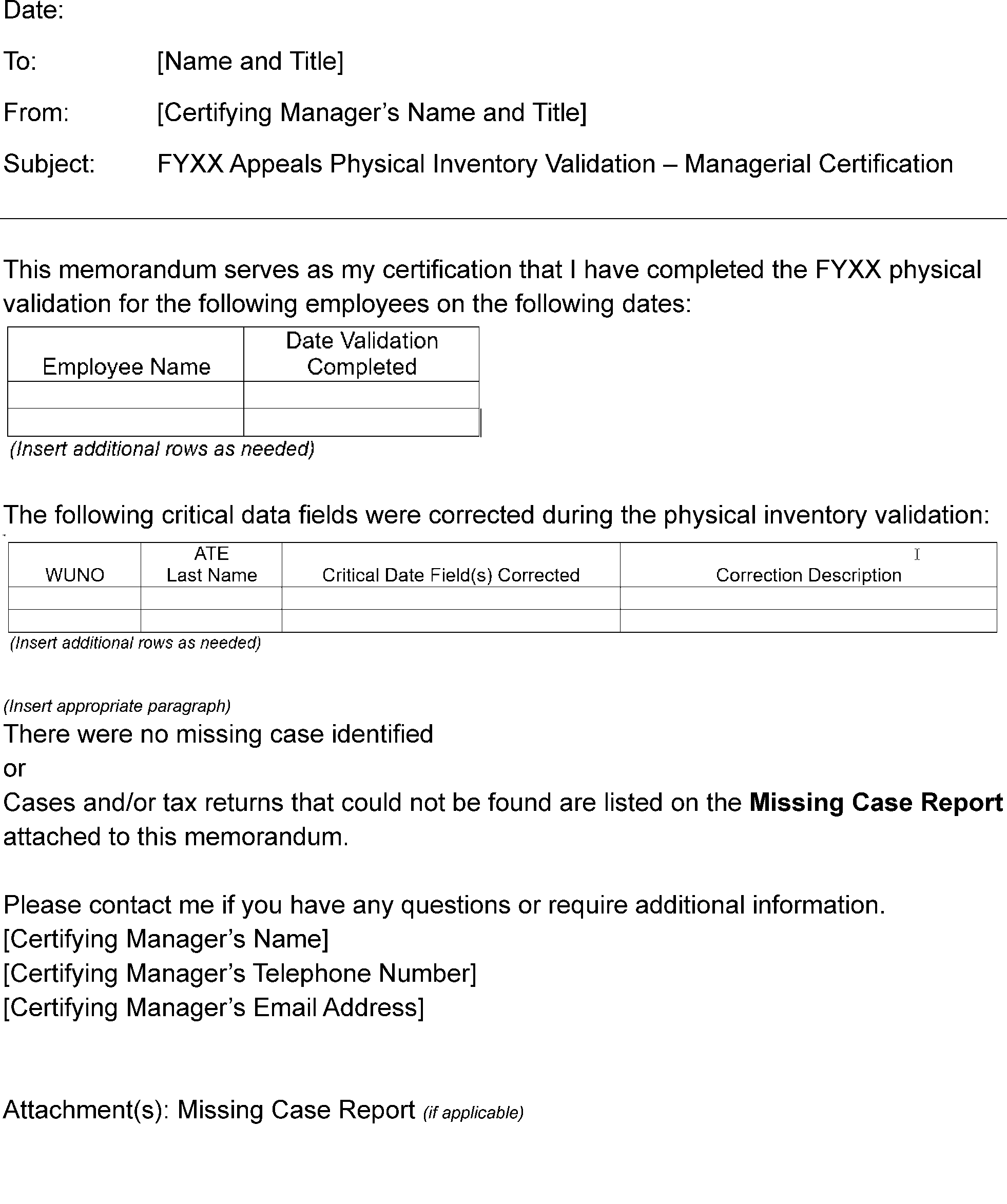
See Exhibit 8.10.3-1, Managerial Certification Memorandum. This exhibit provides a template to use as the managerial certification memorandum.